Showing posts with label DevOps. Show all posts

Sunday, February 26, 2017

DevOps toolchain configuration


How to configure Git & GitHub in Eclipse


How to trigger build automatically in Jenkins


How to configure a Maven Build in Jenkins


How to configure SonarQube in Jenkins


How to configure Cucumber in Eclipse & Jenkins


How to deploys code into Docker containers using Jenkins


How to configure puppet master & puppet agent


How to configure Nagios server and Nagios host


Tuesday, February 21, 2017

Continuous Testing - Integrating Cucumber Maven Project in Jenkins

DevOps: Continuous Testing - Cucumber


Create a Maven project in Eclipse

Create a maven project -> Create a simple project -> Update group ID, artefact ID -> Update pom.xml with latest cucumber – Junit dependency xml tag-> Update pom.xml with latest cucumber – Java dependency xml tag -> Update pom.xml with latest maven – Junit dependencies xml tag-> Update pom.xml with latest maven - selenium dependency xml tag-> Press ^S ->


Create a cucumber feature file

Add the plugin from https://cucumber.io/cucumber-eclipse/update-site -> Create feature file in a separate folder - > Add feature syntax given, when & then -> Add a test package -> Add a class in test package with syntax @RunWith(Cucumber.class) & @CucumberOptions(features=””,glue={“”} -> Add feature location and add step definition as glue -> Run the project as cucumber feature to get skeleton step code -> Create a step definition package – Add a class -> Add feature skeleton code in the step definition class -> Modify the skeleton code -> run the project as junit test -> Run as maven project with goal as (clean build) ->


Create a Maven build job in Jenkins

Create a Maven project in Jenkins –> Update the pom.xml location -> Run the maven project with option clean & install.


Tuesday, February 7, 2017

Continuous Monitoring - Configuring Nagios Server and Nagios Host in Docker Containers

DevOps:Continuous Monitoring:Nagios in Docker Containers


Install Nagio server image in docker container

Select a Nagios image -> download the image (docker pull appcontainers/Nagios) -> Create the docker container (docker run -d -it --name nagiosserver -h nagios -p 8181:80 appcontainers/Nagios) -> Configure a Nagio user in Nagios server command prompt (htpasswd -c -b /etc/nagios/passwd username password) -> Login to Nagios server from browser with the help of user created in previous step (http://localhost:8181/nagios/) ->


Install & configure a Nagios host in docker container

Download a server(ubuntu/centos) image (docker pull nuagebec/Ubuntu) -> Create the docker container (docker run -d -p 0.0.0.0:2222:22 nuagebec/Ubuntu)-> Install NRPE server plugin in the server container (sudo apt-get install nagios-nrpe-server nagios-plugins)-> Update server address and port in nrpe.cfg file (server_address=172.17.0.02, server_port=8181) ->


Configure Nagios host in Nagios server

Update server folder location in Nagios.cfg file in Nagios server (cfg_dir=/etc/nagios/servers) -> Add server folder in Nagios server (mkdir -p /etc/nagios/servers ) -> Create a configuration file in Nagios host and save in the server folder (vim /etc/nagios/servers/ubuntu_host.cfg ) ->


Test the Nagios host configuration update

Restart NRPE service server in Nagios host (service nagios-nrpe-server restart)-> Restart Nagios service in Nagios server (service nagios restart)-> Open the Nagios server browser and verify Nagios host has been added.


Friday, January 27, 2017

Continuous Quality - SonarQube Configuration in Jenkins

DevOps - Continuous Integration : SonarQube Configuration in Jenkins


Install SonarQube in CI server

Download latest SonarQube from https://www.sonarqube.org/downloads and install in your CI server, or for Mac machines brew command can be used alternatively - brew update - brew install sonar ->


Configure & start the sonarQube server

Create sonar database in local server using database queries - CREATE DATABASE sonar_source; - CREATE USER 'sonar'@'localhost' IDENTIFIED BY 'sonar'; - GRANT ALL PRIVILEGES ON sonar_source.* TO 'sonar'@'localhost'; - FLUSH PRIVILEGES; -> Update database details in sonar properties file using command - $ vim /usr/local/Cellar/sonarqube/6.1/libexec/conf/ sonar.properties -> Start the sonar server using command - $ sonar console ->


Configure SonarQube in Jenkins

Install SonarQube plugin in Jenkins using option - Manage Jenkins - Manage Plugins -> Update sonarQube server detail using option - Manage Jenkind - Configure System ->


Create SonarQube build job in Jenkins

Create a maven build job using option - new item -> Check ‘Prepare SonarQube Scanner environment’ under build Environment -> Update pom.xml url in ROOT POM -> Select ‘sonarQube analysis with maven’ under Post-build Actions ->


Run the sonarQube build job & view SonarQube report in Jenkins

Run the build -> Upon successful run, click ‘SonarQube’ icon to view SonarQube code analyzer report.


Monday, January 23, 2017

Continuous Deployment - Puppet master & puppet agent in docker containers

Installing & Running puppet server(master) & puppet agent in docker containers


Create puppet docker containers

Choose a suitable & stable puppet image from dockerhub and install in your docker server -> $ docker pull devopsil/puppet ->


Alternatively, create your own docker file ->


Install a docker container with a suitable puppet master name -> $ Docker run --name puppetmaster -it devopsil/puppet bash -> Install another docker container with a suitable puppet agent name -> $ Docker run --name puppetagent -it devopsil/puppet bash ->

Configure hostname in puppetmaster container with a meaningful name in network file -> # vi etc/sysconfig/network -> HOSTANME=master.demo.com -> Configure hostname in puppetagent container with a meaningful name in network file -> # vi etc/sysconfig/network -> HOSTNAME=agent.demo.com ->

Configure hostname in puppetmaster & puppetagent with same name in hosts file -># vi etc/hosts -> [masterip] 172.17.0.2 master.demo.com -> [agentip] 172.17.0.3 agent.demo.com ->

Ping master form agent and agent from master to test network connection between puppetmaster & puppetagent containers->


Install puppet server & puppet agent in docker containers

Install puppet server in puppetmaster container -># yum install –y puppet puppet-server facter -> install puppet agent in puppetagent container -># yum install –y puppet facter ->


Update puppet.conf file under [main] in puppetmaster container -># vi etc/puppet/puppet.conf -> certname = master.demo.com -> Update puppet.conf file in puppetagent container -># vi etc/puppet/puppet.conf -> server = master.demo.com ->


Start puppet master in puppetmaster container -># service puppetmaster start -># service puppetmaster status ->


Authenticate puppet agent in puppet master

Request certification from agent -># puppet agent --test –server=[master hostname]master.demo.com --waitforcert=50 -> check for certificate request in master -># puppet cert list -> sing certification in master -># puppert cert sign [agent hostname]agent.demo.com ->


Test an example

Create a puppet policy file in puppet master in manifest folder -> # vi etc/puppet/manifest/site.pp ->


Apply the configuration change in puppet agent -># Puppet agent –-test


Thursday, January 12, 2017

Continuous Deployment Automation : Git -> Jenkins -> Docker

DevOps - continuous deployment automation using Git, Jenkins & Docker


Create a Git repository ->


Create a Dockerfile (- to build a container for a php web application shown above in video as an example) inside the Git repository ->


Create other components (index.php under src folder in above example) in the git repository needed to run the designated application inside a docker container -> Change one of these components to git commit the change and trigger a Jenkins build ->


Create a Jenkins freestyle project in Jenkins -> Update the above created Git repository location under SCM configuration of the project -> Select trigger builds remotely and input an authorization token in the configuration ->


Update .git/hooks/post-commit file with a syntax to trigger the Jenkins job created in above step -> Update .git/hooks/post-commit file with a syntax to execute docker commands to create and run a docker container using a Dockerfile ->


Docker commands can be put in an executable file (buildExecutable in this case) ->


Commit the change made (-in one of above steps) in application component -> post-commit of .git/hooks folder will trigger the Jenkins build job -> post-commit will also execute docker commands to build and run a docker container running an application within (a php web application in this case).


Wednesday, January 4, 2017

Continuous Integration Automation : Eclipse -> Selenium -> Git -> Jenkins

DevOps - Continuous Integration Automation using Eclipse, Selenium, Git & Jenkins


Create a maven project in Eclipse -> Create a simple project -> update group ID & artifact ID -> add a package into the project -> add a class into the package->


Update selenium & TestNG dependencies in POM xml file -> Add maven build plugins in POM xml -> Convert the class created in earlier step into a TestNG.xml file -> Save the TestNG.xml file into src/main/resource folder -> Update the location of TestNG file in POM xml under surefire plugin ->


Save the selenium project into a Git repository -> Commit file and folder structure of the project into Git repository -> Make sure Jenkins user have read & write access to this Git repository -> If required clean the repository by running maven clean job with appropriate access ->


Create a maven job in Jenkins -> Update the Git repository url in the job configuration -> Update the location of pom.xml file in job configuration -> Save the maven build job ->


Run the maven build job in Jenkins from Eclipse.


Tuesday, December 27, 2016

Continuous integration Automation : Eclipse -> Git & GitHub -> Jenkins

DevOps - Continuous integration Automation with Eclipse, Git & GitHub & Jenkins


Create a new java project in Eclipse -> Add an object in the new Java project -> Add a class in the object -> Write some working code in the class ->


Add the project in local Git repository -> Make some changes in the java code -> Commit the changes in local Git repository using option right click the java project -> Select team -> Press commit -> Update details in Git staging window -> View the commit done in history window ->


Create a remote repository in GitHub from Git Repositories window of Eclipse -> Push the committed change of local Git repository in the remote GitHub repository ->


Create a freestyle project in Jenkins -> Select SCM option as Git and update local Git repository address as repository URL in the Jenkins project configuration ->


Add a Jenkins server in Eclipse using build window -> Select a build job -> Run the build from Eclipse.


Triggering a Jenkins job from an external script


Update the Jenkins build job configuration with option -> trigger build remotely and adding the authentication key ->

Create a post commit script in hooks folder of the Git -> Add following command – “curl --user : ?token=” in the post commit script -> Add a change in the local Git repository master from command line -> Commit the change from command line -> Git commit will execute the Jenkins job.


Wednesday, December 14, 2016

DevOps (Continuous Deployment) - Docker with Puppet

Docker : Containerization Platform -

Docker containers wrap up a piece of software in a complete filesystem that contains everything it needs to run: code, runtime, system tools, system libraries – anything you can install on a server. This guarantees that it will always run the same, regardless of the environment it is running in.

Solomon Hykes started Docker as internal project at dotCloud in France. 1st release of Docker happened in March 2013.

Installing Docker -

Docker is available to download from https://www.docker.com. Download dmg(mac)/exe(Window) file -> Double click and follow the instruction -> Once installed correctly running docker can be viewed in your system tray ->


Kitematic : Running Containers -

Click - open Kitematic -> Kitemitcs will show the list of docker images available to create -> click 3 dots beside the create button -> click ‘view on docker hub’ —> it’ll open a link about how to create, configure, start and stop a specific docker image application ->


Select an image -> Click create -> Kitematic will install the image and start application with default setting - Configure the application as per your requirement -> Multiple containers can be created with one application running in each. Applications within the containers can also communicate to each-other.


Puppet : Configuration Management -

Puppet is a Ruby based configure management tool initially released in 2005. Docker image can be managed & Docker containers can be run using puppet (puppet apply & puppet agent).


Gareth Rushgrove has created a useful puppet resource on installing & managing docker - https://forge.puppet.com/garethr/docker.


Thursday, December 8, 2016

DevOps (Continuous Integration) – Selenium & Cucumber using Maven in Jenkins

Selenium – Automated Testing Framework

Selenium is an open source automated testing software for web application released under Apache 2.0 license. Earliest version of Selenium tool was developed by Jason Huggins in 2004. Later, many people contributed in bringing the Selenium testing tool to its current level.

Selenium download is available at http://www.seleniumhq.org. It’s needs to be configured in IDE like eclipse & visual studio to be used.

Configuring Selenium in Jenkins –

Selenium testing job can be configured in Jenkins as freestyle or Maven project. In freestyle project Selenium job is executed through shell script running the testng.xml. Selenium testing as Maven project in Jenkins is done using pom.xml.

Freestyle Project ->

Create a Java project in Eclipse using option -> New -> Java Project -> Update Project Name -> Click Libraries -> Add External Jars -> Select Selenium-Server-Standalone Jar file -> Add Library – Select TestNG – Click Next – Click Finish – Click Finish ->


Create a script file (mac)/bat file (window) in the project directory using syntax – “java –cp bin;lib/* org.testng.TestNG testng.xml” and save the file in same directory locally.


Create a freestyle project in Jenkins using option –> New Item -> Update project name -> Select Freestyle project -> Press ok -> Click advance under General -> Select custom workspace ->update project home directory in the directory field ->


Next step , under build ->Press Add build step -> Select “Execute shell” -> Update script file name in the command field -> Press apply ->Press save ->


Now, a freestyle selenium project is ready to build in Jenkins.

Maven Project ->

Verify & insure your Eclipse have Maven and TestNG plugins installed -> Create a Maven project in Eclipse using option New -> Project -> Select Maven Project -> Click next -> Check “Create a simple project” -> Click Next -> Update group ID field –> update artifact ID field -> update name -> update description -> click finish ->


Update the pom.xml file with necessary Selenium & testng dependencies and testing.xml file location detail->


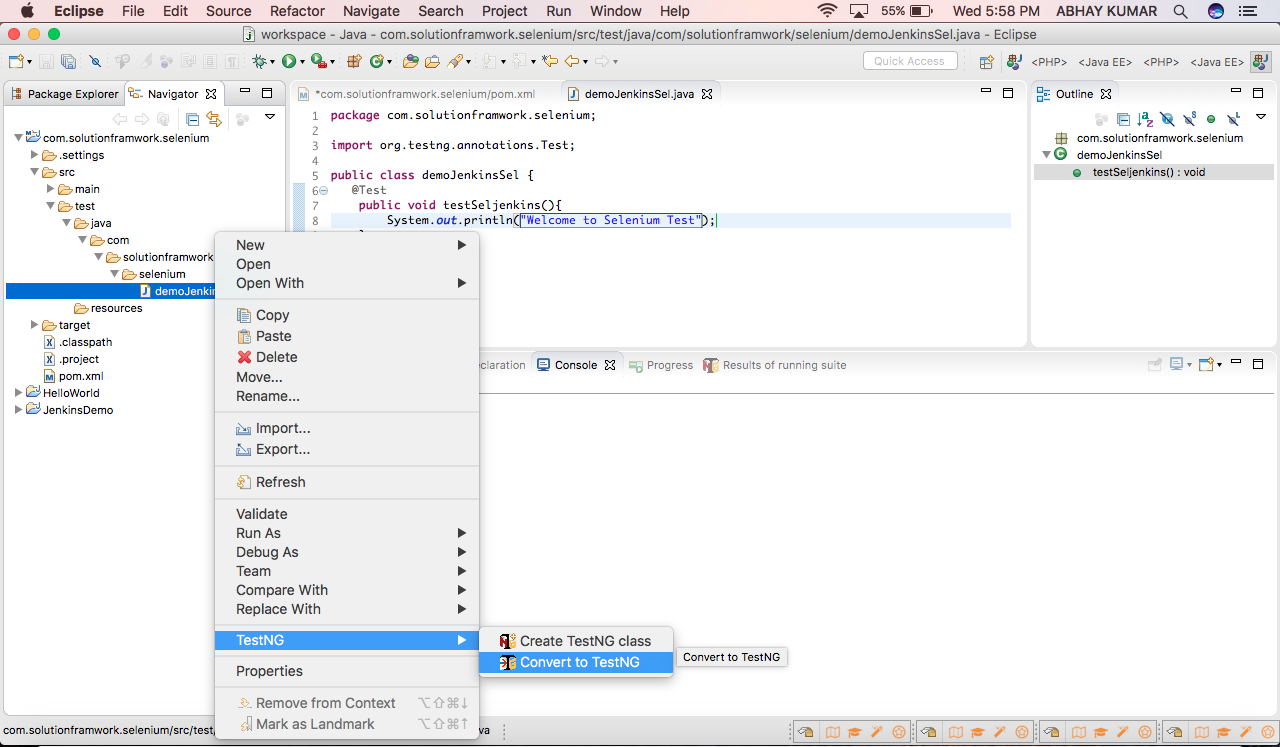
Create a test program & generate testng.xml using right click test java class -> Select TestNG -> Convert to TestNG -> save testng.xml file as per pom.xml location specification ->


Next, in Jenkins -> Create New item – Enter an item name -> Select Maven project -> Press ok -> Update pom.xml location file in build section -> Press apply –> Press save.


Now, maven selenium project ready to build in Jenkins.

Cucumber – Behaviour Driven Development

Cucumber is automated testing tool written in behaviour driven development style.

Configuring Cucumber in Jenkins –

Create a project in Eclipse using option -> New -> project -> select Maven project -> press next -> check ‘create a simple project’ -> Press next -> Update group ID -> Update artefact ID -> Update name -> Update description -> Press finish ->


Open pom.xml file -> Update latest stable selenium, junit, cucumber-java, cucumber-junit dependencies in the pom.xml -> Press control^S ->


Install cucumber software update for eclipse from chttp://cucumber.github.com/cucumber-eclipse/update-site using option help -> install new software -> Create a feature file ->


Create a package and java class in src/test/java folder using option new package -> Name the package -> New class -> Name the class -> Add reference of the feature file in the class ->


Create a test step package and java class in src/test/java folder using option new package -> Name package -> New class -> Name class -> Create test steps as per the feature file and reference as ‘glue’ in the earlier defined class - >


In Jenkins, create new project using option -> New Item -> Enter an item name -> Select Maven -> Click ok -> Update location of the the pom-xml file in next page under build section-> Press apply -> Press save ->

Now, Maven-Cucumber project is ready to build in Jenkins.